Support tickets are used to contact Green Trail Hosting about billing questions, service issues, and other support requests. Before opening a ticket, log in to your billing and support console. See the Logging into Billing Portal guide for detailed login instructions.
Open the Tickets Page
From your dashboard, find the navigation bar across the top of the page. Select Support, then choose Tickets from the drop-down menu.
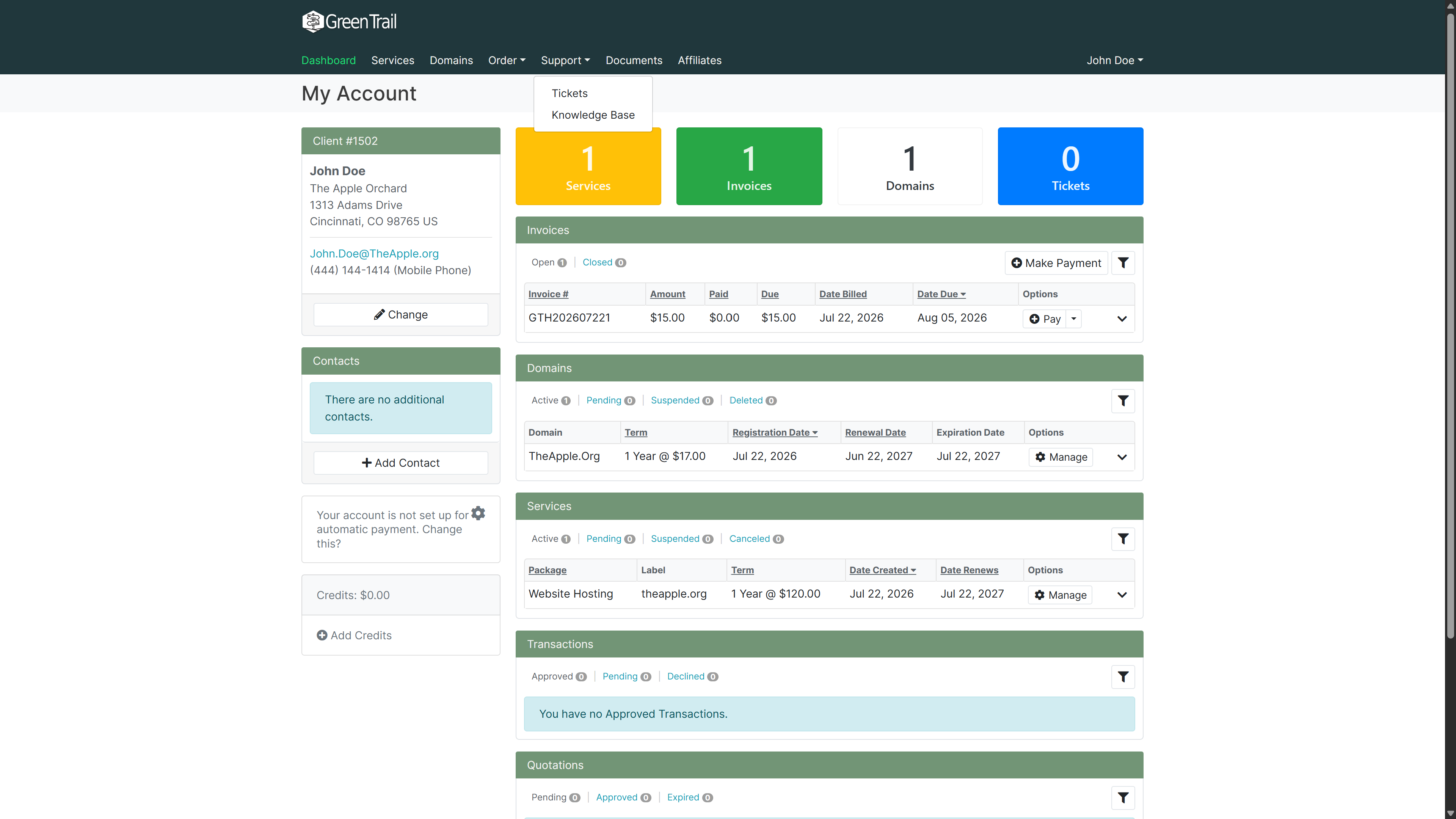
The Tickets page will open and display all support tickets associated with your account.
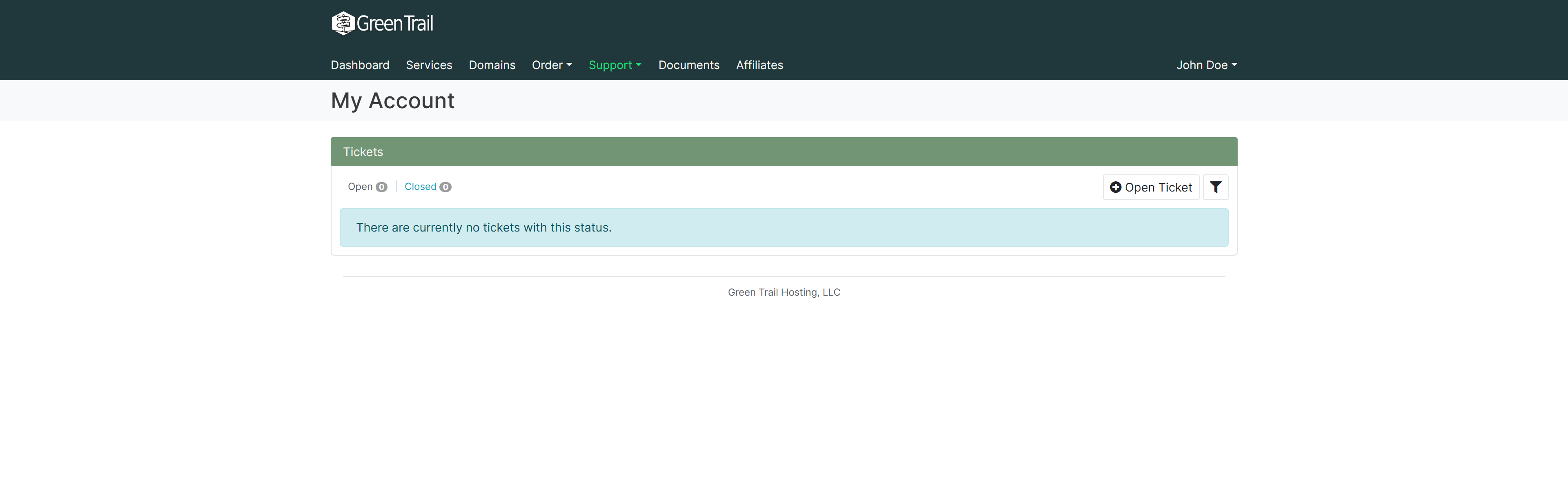
Open a New Ticket
Select the Open Ticket button.
You will be asked to select one of the following ticket types:
- Billing Ticket — For billing, invoice, payment, or account-related questions.
- Service Ticket — For questions or problems involving one of your services.
Please select the ticket type that best matches your request. Choosing the correct type helps us route your ticket appropriately and address your issue as quickly as possible.

Complete the Ticket Draft
After selecting a ticket type, the ticket draft window will open.
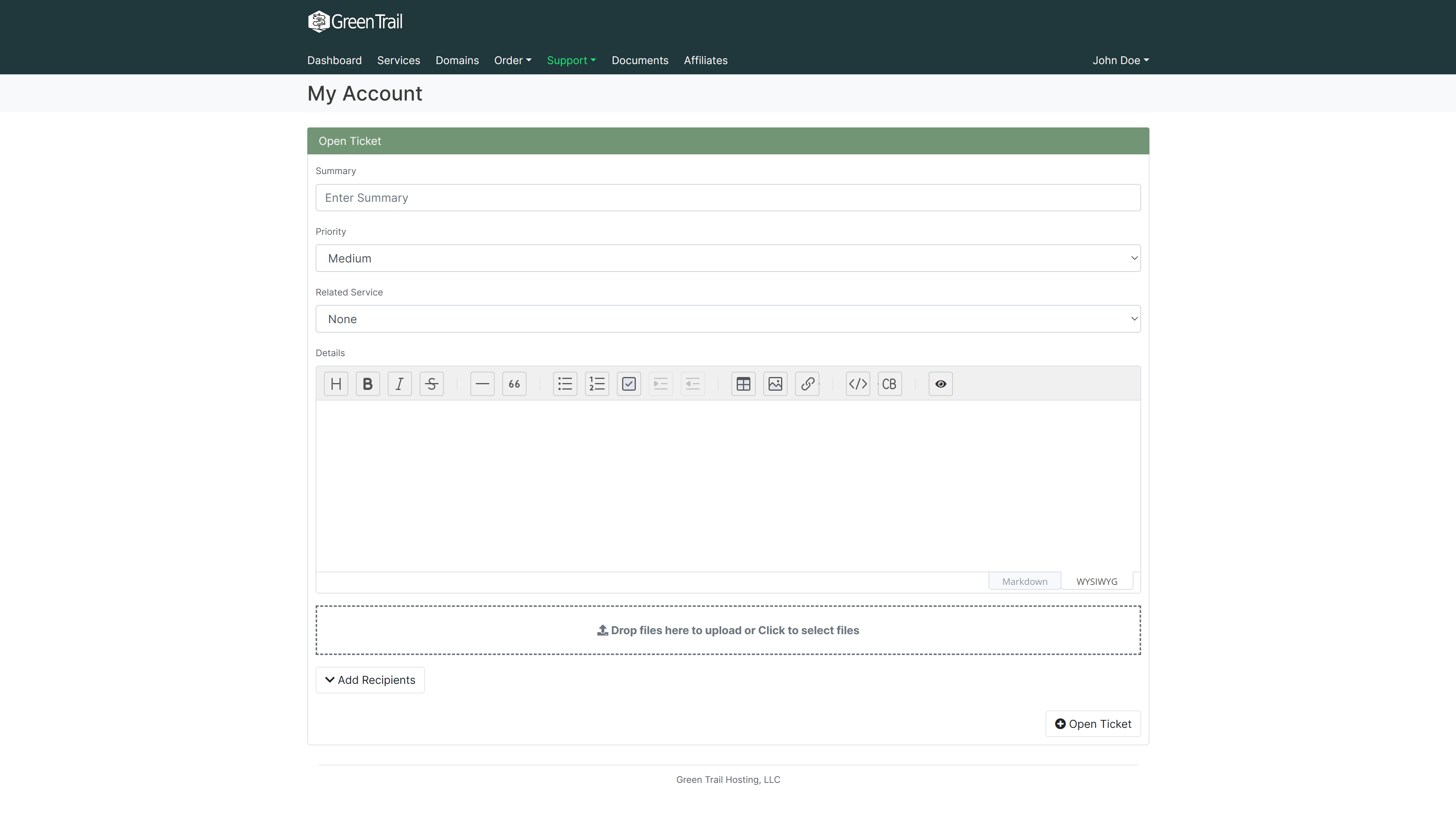
Complete the available fields:
- Title: Enter a clear summary of your question or issue.
- Priority: Select the appropriate priority for the request.
- Related service: Select the service associated with the ticket.
- Details: Describe the issue and include as much relevant information as possible.
The more information you provide, the easier it will be for us to understand and investigate your request. You can also upload files or images that show the issue.
Adding Other Recipients
The Add Recipients option is useful when you are part of an organisation and want additional people included in the ticket correspondence. Any recipients added here will be copied on messages related to the ticket.
Submit the Ticket
Review the information you entered, then select Open Ticket.
Your new ticket will appear on the Tickets page. You will also receive an email confirming that the ticket was opened successfully.
We aim to respond to all support tickets within 48 hours.