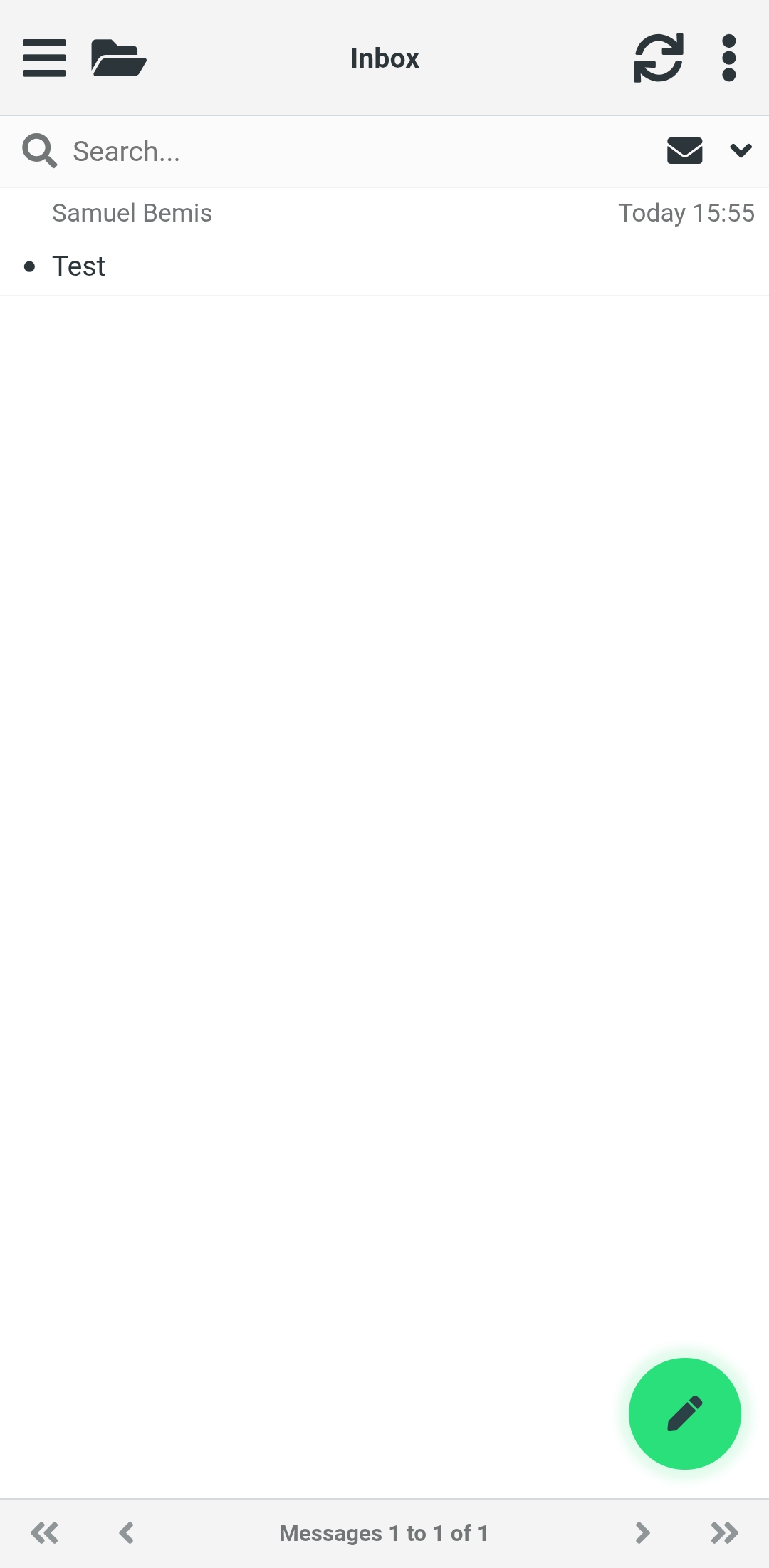
This guide explains how to install Green Trail Hosting Webmail on your Android device so you can access your email directly from your home screen or apps menu.
If you are using an iPhone or iPad instead, follow the How to Install Email on iOS guide.
Open Webmail in Chrome
On your Android device, open Google Chrome.
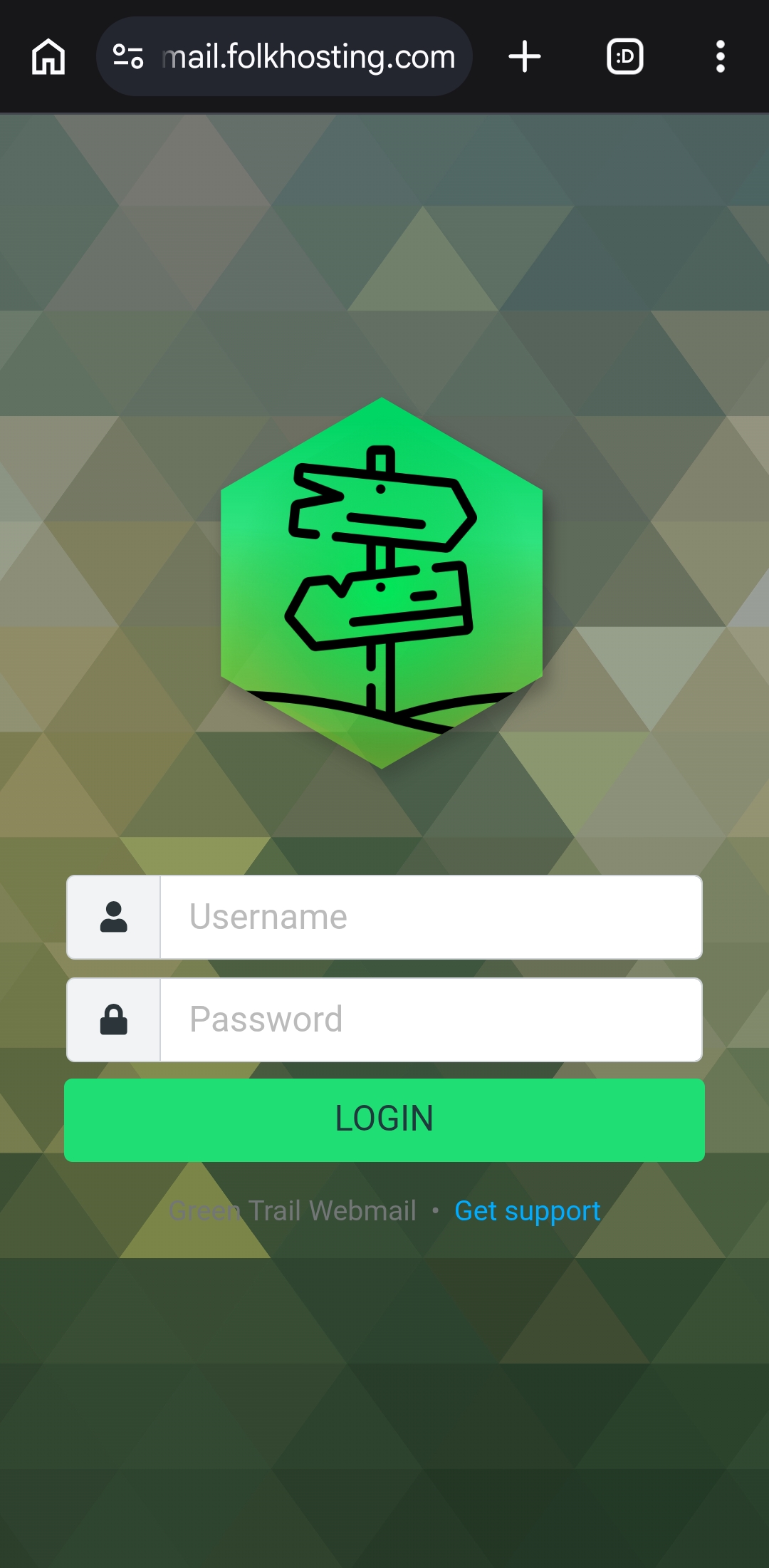
In the address bar, go to email.yourdomain.tld, replacing yourdomain.tld with your own domain name.
Install GTH Webmail
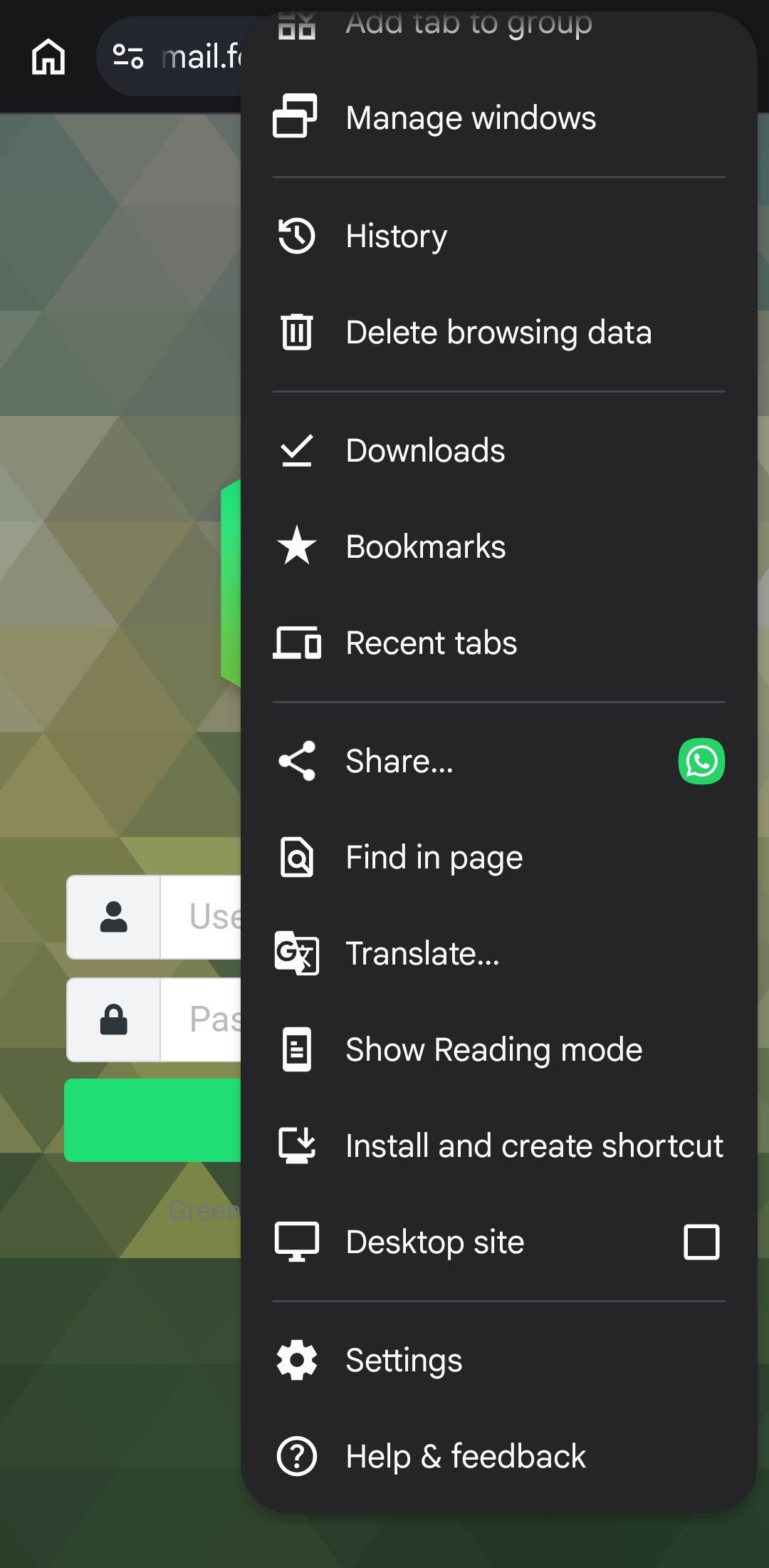
Tap the three-dot More menu in the Chrome address bar.
From the menu, tap Install and create shortcut.
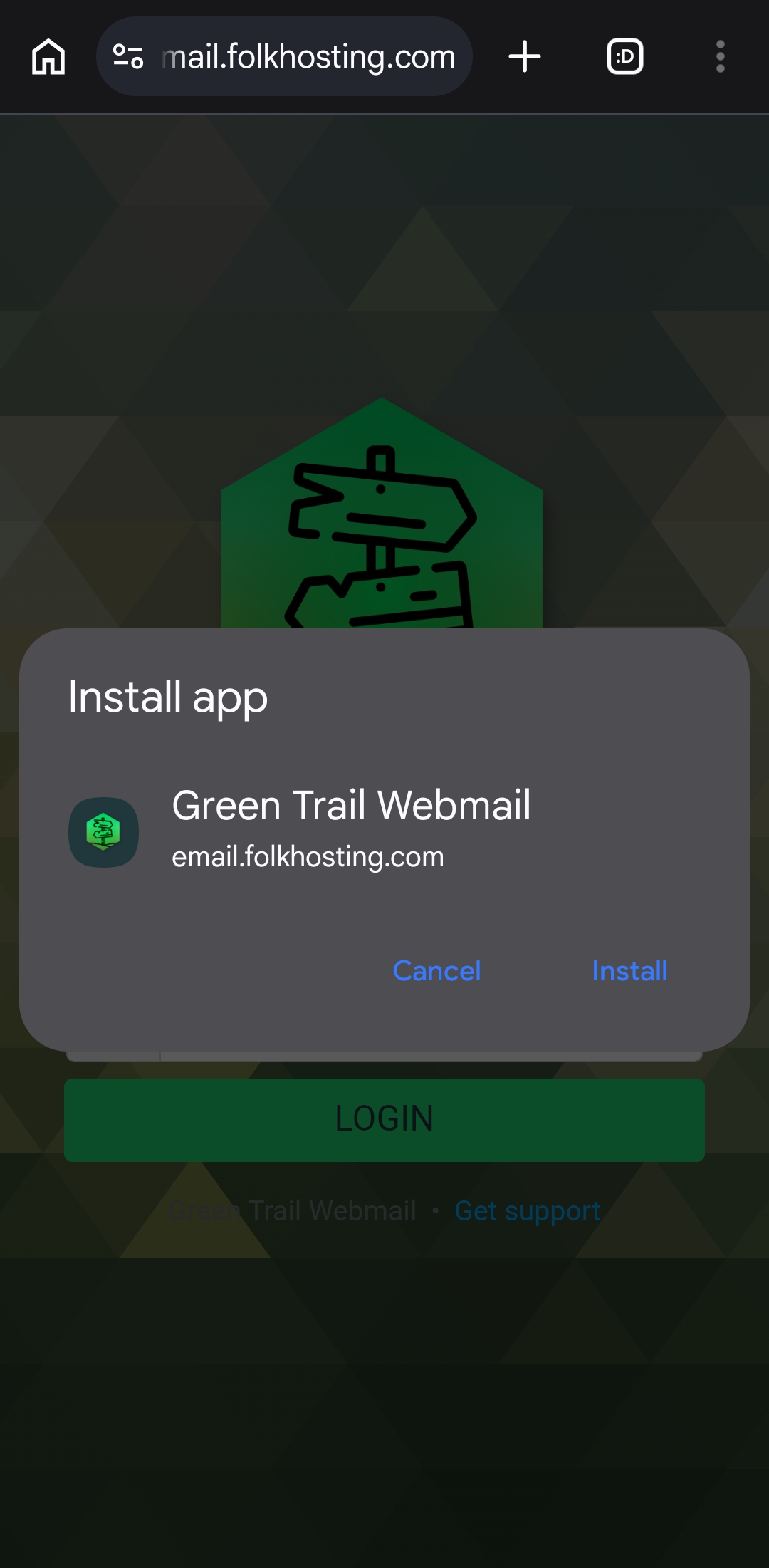
A confirmation window will appear. Tap Install.
Open GTH Webmail
Once installation is complete, a new app called GTH Webmail will appear on your home screen or in your apps menu.
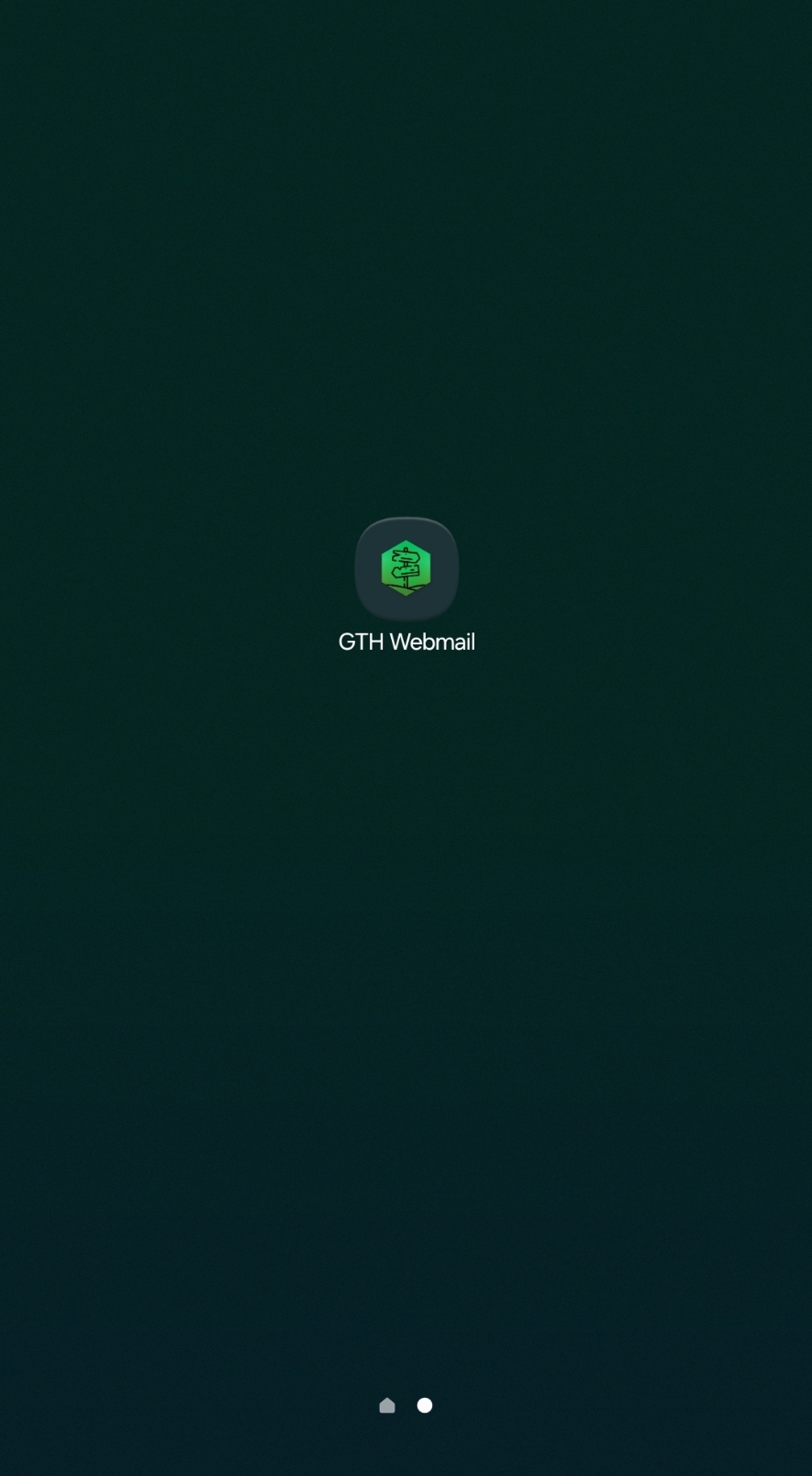
Tap GTH Webmail to open it.
You will be prompted to log in using your email address and email password.
Access Your Inbox
Once you have logged in, your inbox will open and you can use GTH Webmail directly from your Android device.