Green Trail Hosting customers with an active hosting service can access email through a browser-based mailbox. Every hosting account includes one administrator mailbox and up to four custom mailboxes.
If you need additional mailboxes, please open a support ticket through the billing portal.
Open Your Email Mailbox
To access your mailbox, open the following address in your browser:
https://email.yourdomain.tld
Replace yourdomain.tld with your actual domain name. For example, if your domain is example.com, your email login address would be https://email.example.com.
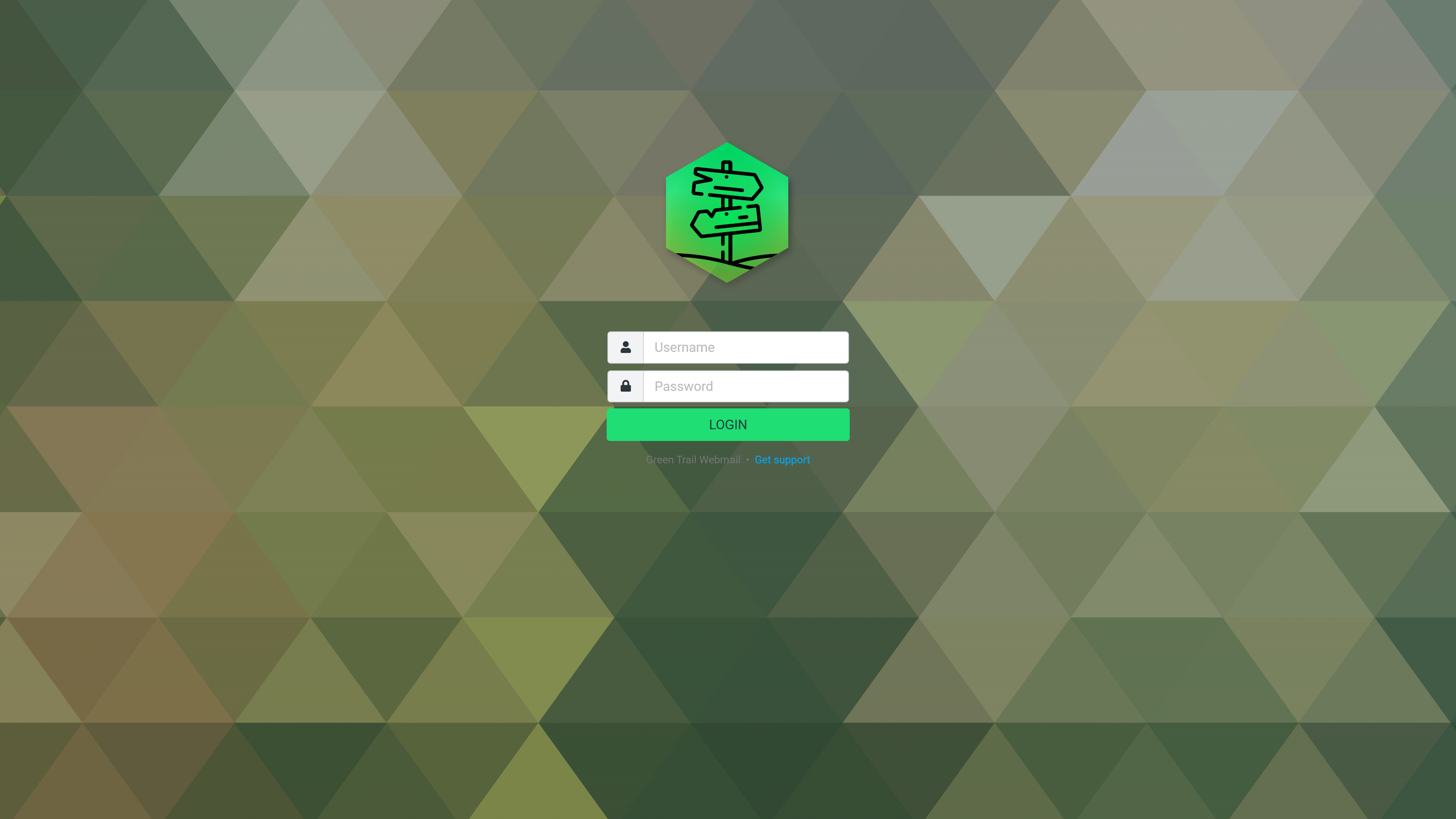
Sign In to Your Mailbox
Enter the login details for the mailbox you want to access:
- Username: Enter the complete email address for the mailbox, such as admin@example.com or name@example.com.
- Administrator mailbox password: The main administrator mailbox uses the same password as your Green Trail Hosting Service Console account.
- Custom mailbox password: Use the password that was set when the custom mailbox was created.
Your email mailbox password may be different from the password used to access your Green Trail Hosting billing account.
After signing in, you will be taken directly to your inbox.
Using Your Email Mailbox
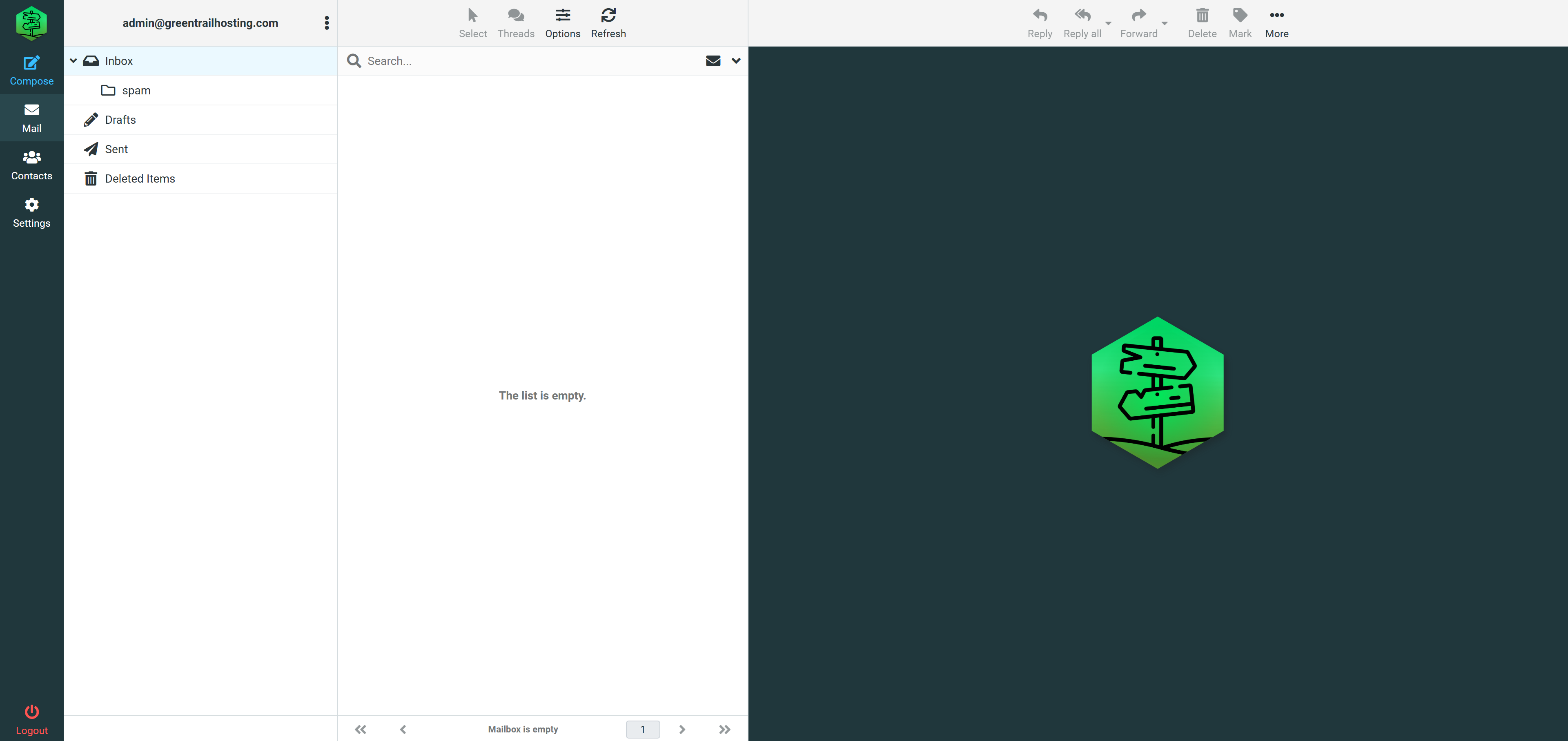
After signing in, your mailbox is divided into several columns and toolbars. The available buttons may change depending on whether you are viewing the inbox, composing a message, or working with a selected email.
Main Navigation
The dark menu running down the far-left side of the screen provides access to the main areas of your mailbox:
- Compose: Create and send a new email message.
- Mail: Return to your email folders and message list.
- Contacts: View and manage saved email contacts.
- Settings: Manage mailbox preferences, folders, sender identities, and other options.
Mailbox Folders
Your email address appears at the top of the second column. Below it is the folder list, which includes folders such as:
- Inbox: Messages you have received.
- Spam: Messages identified as unwanted or suspicious.
- Drafts: Messages you have started but not sent.
- Sent: Messages you have sent.
- Deleted Items: Messages you have deleted.
Select a folder to display its messages in the column immediately to the right.
Message List and Search
The middle column displays the messages in the selected folder. The search bar is located directly above this message list.
Enter a search term and press Enter to search the current mailbox folder. Select the search options icon on the right side of the search bar to access additional search controls.
The controls at the bottom of the message list allow you to move between pages when a folder contains more messages than can be displayed at once.
Message List Toolbar
The toolbar above the message list includes controls such as:
- Select: Select one or more messages.
- Threads: Change how related email conversations are grouped.
- Options: Adjust the display or sorting of the message list.
- Refresh: Check the mailbox for new messages.
Reading Pane and Message Actions
The large area on the right is the reading pane. Select a message from the middle column to open and read it here.
The toolbar above the reading pane contains actions for the selected message, including:
- Reply: Respond to the sender.
- Reply All: Respond to the sender and all other recipients.
- Forward: Send the message to another recipient.
- Delete: Move the message to Deleted Items.
- Mark: Change the message status, such as marking it as read, unread, or flagged.
- More: Open additional message actions.
Some toolbar buttons will appear greyed out until you select a message.
Log Out When Finished
The Logout button is located at the bottom of the dark navigation menu on the far-left side of the screen.
Always use this button when you have finished checking your email, particularly on a shared or public computer. Closing the browser window may not immediately end your session.